iOS/visionOS-Verbindungsleitfaden für Unity
Gilt für bHaptics Unity SDK 2.8.0+, ausschließlich auf physischen iOS- und visionOS-Geräten. Das Prefab [bHapticsUIApple] und die BhapticsAppleDevices-API haben im Editor oder auf anderen Plattformen keine Wirkung. Verwenden Sie sie nur für iOS/visionOS und testen Sie immer auf einem physischen Gerät.
Unter Windows/macOS/Android verwaltet die App bHaptics Player die Geräteverbindungen. Unter iOS/visionOS ist das nicht möglich, da die App-Sandbox es einer App nicht erlaubt, eine Bluetooth-Verbindung für andere Apps aufrechtzuerhalten. Stattdessen sucht und verbindet jede App die Geräte direkt über CoreBluetooth.
Das SDK stellt die BhapticsAppleDevices-API sowie ein Beispiel-UI-Prefab, [bHapticsUIApple], bereit. In den folgenden Schritten wird dieses Prefab verwendet.
- Eine Bluetooth-Verwendungsbeschreibung hinzufügen
- Suchen und Verbinden mit dem Beispiel-UI-Prefab verwalten
- Haptisches Feedback abspielen
Eine Bluetooth-Verwendungsbeschreibung hinzufügen
Haptische Geräte kommunizieren über Bluetooth, daher benötigt Ihre App den Schlüssel NSBluetoothAlwaysUsageDescription. Das bHaptics SDK fügt ihn nicht automatisch hinzu, Sie müssen ihn also selbst ergänzen.
Wenn Sie ihn nicht hinzufügen:
- Beim ersten Zugriff Ihrer App auf CoreBluetooth (zum Beispiel, wenn das SDK seinen Bluetooth-Manager initialisiert, um gekoppelte Geräte wieder zu verbinden, oder wenn es eine Suche startet) beendet iOS die App sofort mit einem Crash:
This app has crashed because it attempted to access privacy-sensitive datawithout a usage description. The app's Info.plist must contain anNSBluetoothAlwaysUsageDescription key ...
- Die Upload-Validierung von App Store Connect kann den Build mit ITMS-90683 (Missing purpose string) zurückweisen, selbst wenn Ihre App die Such-API zur Laufzeit nie aufruft, weil die erstellte Anwendung CoreBluetooth-APIs referenziert.
So fügen Sie die Beschreibung hinzu
Wählen Sie im generierten Xcode-Projekt das Haupt-Target der App aus (für einen iOS-Build typischerweise Unity-iPhone) und öffnen Sie den Tab Info. Fügen Sie Privacy - Bluetooth Always Usage Description hinzu, oder bearbeiten Sie Info.plist direkt:
<key>NSBluetoothAlwaysUsageDescription</key>
<string>This app uses Bluetooth to connect to nearby bHaptics haptic devices (such as TactSuit) and play haptic feedback.</string>
Schreiben Sie einen app-spezifischen Text, der erklärt, warum Ihre App Bluetooth verwendet. App Review kann einen vagen oder allgemeinen Text zurückweisen (Richtlinie 5.1.1).
Das Berechtigungs-Pop-up erscheint beim ersten Start der App und zeigt diesen Text an. Verwenden Sie InfoPlist.strings für die Lokalisierung.
Mit der Beispiel-UI verbinden
Das Prefab [bHapticsUIApple] ist eine Beispiel-UI, die zeigt, wie man nach bHaptics-Geräten sucht und sich mit ihnen verbindet; intern nutzt sie die BhapticsAppleDevices-API.
Verwenden Sie das Prefab [bHapticsUIApple] nur für iOS/visionOS.
Dieser Leitfaden setzt voraus, dass Sie das bHaptics Unity SDK bereits importiert und Ihre Haptik-App verknüpft haben. Falls nicht, lesen Sie zuerst den Unity-Leitfaden.
Das UI-Prefab hinzufügen
![[bHapticsUIApple] in der Szene platziert](/de/assets/images/apple-guide-scene-9b3d2dfc399b62c74919d28a04b3abc7.jpg)
Platzieren Sie das Prefab Assets/Bhaptics/SDK2/Prefabs/[bHapticsUIApple] in Ihrer Szene.
Suchen
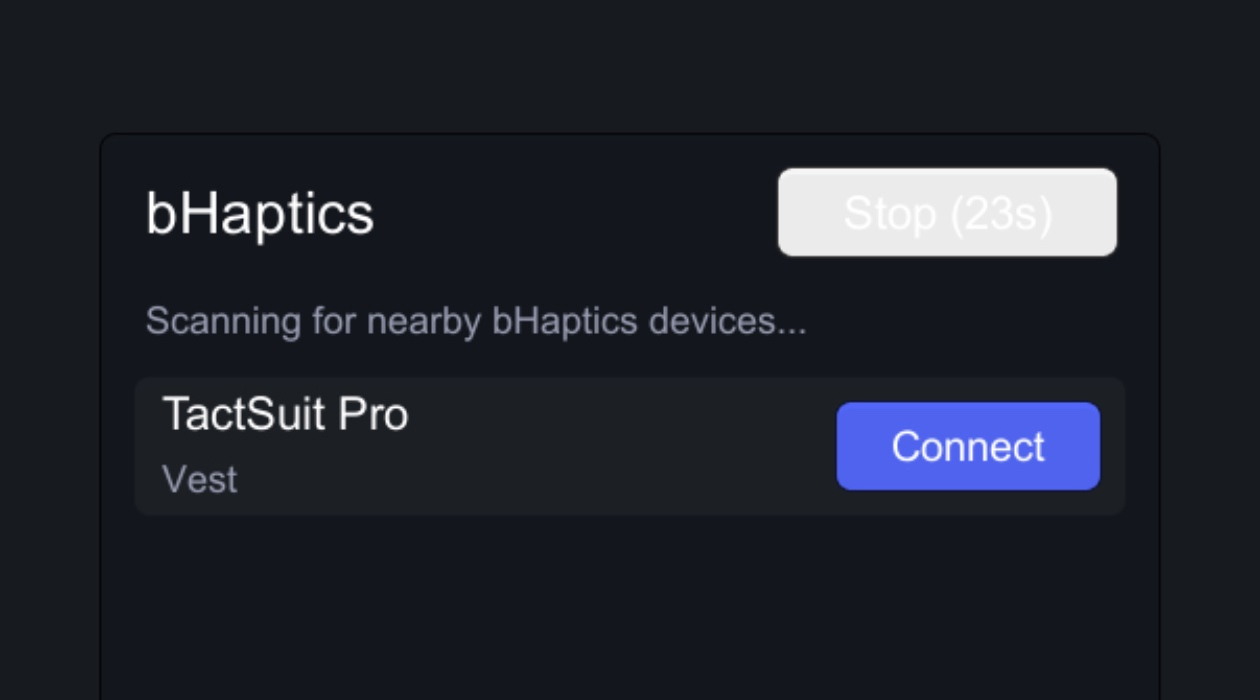
- Ein Tippen auf Scan sucht nach bHaptics-Geräten in der Nähe.
- Die Suche stoppt automatisch nach 30 Sekunden; die Schaltfläche zeigt einen Countdown der verbleibenden Zeit. Tippen Sie erneut darauf, um die Suche sofort zu beenden.
- Die Liste zeigt Geräte, die bei dieser Suche gefunden wurden, zusammen mit zuvor gekoppelten Geräten.
Verbinden
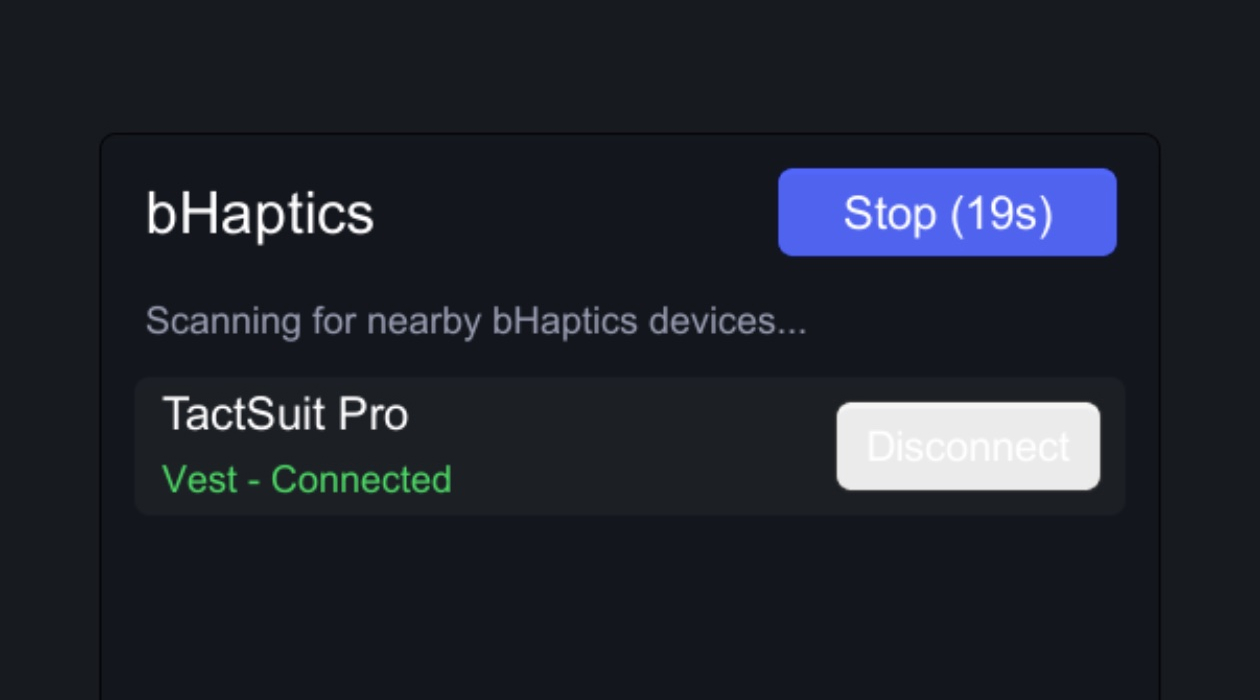
- Ein Tippen auf Connect bei einem Gerät koppelt (merkt) es und verbindet es in einem Schritt. Der Status wird grün und zeigt
Connected. - Disconnect entkoppelt (vergisst) das Gerät und trennt die Verbindung.
Jedes Gerät zeigt seinen Verbindungsstatus an. Es gibt drei mögliche Zustände:
| Status | Bedeutung |
|---|---|
[Position] - Connected (grün) | Verbunden |
[Position] - Paired (grau) | Gemerkt, aber derzeit nicht verbunden |
[Position] | Gefunden, nicht gekoppelt |
Kopplungsinformationen werden in der eigenen Sandbox der App gespeichert, nicht in der systemweiten Bluetooth-Kopplung in der iOS-Einstellungen-App.
- Sie müssen in jeder App separat koppeln. Um dasselbe Gerät in einer anderen App zu verwenden, verbinden Sie es erneut aus dieser App.
- Nach dem Koppeln verbindet sich das Gerät automatisch wieder, sobald das SDK das nächste Mal initialisiert wird (das Prefab
[bHaptics]erledigt das beim Start Ihrer App). - Ein Gerät, das Sie nicht gekoppelt haben, verbindet sich niemals von selbst — Suchen und Koppeln sind immer explizit (nützlich für Mehrbenutzer-Szenarien und Veranstaltungen vor Ort).
Nächster Schritt: Haptisches Feedback abspielen
Suchen und Verbinden funktionieren für sich allein, aber zum Abspielen von Events muss das SDK initialisiert sein. Die Initialisierung übernimmt das Prefab [bHaptics]. Fügen Sie es Ihrer ersten Szene hinzu (siehe Add Prefab for Initialization im Unity-Leitfaden).
Sobald das Prefab platziert ist, spielen Sie Events wie gewohnt ab:
BhapticsLibrary.Play("my_event"); // Plays on the connected device
Anhang: Direkte Steuerung ohne die UI
[bHapticsUIApple] ist nur ein Beispiel — Sie können mit derselben Low-Level-API Ihre eigene Verbindungs-UI erstellen. Siehe Class BhapticsAppleDevices in den Referenzen.