iOS/visionOS Connection Guide for Unity
Applies to bHaptics Unity SDK 2.8.0+, on iOS and visionOS physical devices only. The [bHapticsUIApple] prefab and the BhapticsAppleDevices API do nothing in the Editor or on other platforms. Use them only for iOS/visionOS, and always test on a physical device.
On Windows/macOS/Android, the bHaptics Player app manages device connections. It can't do so on iOS/visionOS, because the app sandbox doesn't allow one app to maintain a Bluetooth connection for others. Instead, each app scans for and connects to devices directly over CoreBluetooth.
The SDK provides the BhapticsAppleDevices API and a sample UI prefab, [bHapticsUIApple]. The steps below use the prefab.
- Add a Bluetooth usage description
- Manage scanning and connecting with the sample UI prefab
- Play haptics
Add a Bluetooth Usage Description
Haptic devices communicate over Bluetooth, so your app needs the NSBluetoothAlwaysUsageDescription key. The bHaptics SDK does not add it automatically, so you must add it yourself.
If you don't add it:
- The first time your app accesses CoreBluetooth (for example, when the SDK initializes its Bluetooth manager to reconnect paired devices, or when it starts a scan), iOS crashes the app immediately:
This app has crashed because it attempted to access privacy-sensitive datawithout a usage description. The app's Info.plist must contain anNSBluetoothAlwaysUsageDescription key ...
- App Store Connect upload validation can reject the build with ITMS-90683 (Missing purpose string) even if your app never calls the scanning API at runtime, because the built application references CoreBluetooth APIs.
How to Add the Description
In the generated Xcode project, select the app's main target (typically Unity-iPhone for an iOS build) and open the Info tab. Add Privacy - Bluetooth Always Usage Description, or edit Info.plist directly:
<key>NSBluetoothAlwaysUsageDescription</key>
<string>This app uses Bluetooth to connect to nearby bHaptics haptic devices (such as TactSuit) and play haptic feedback.</string>
Write an app-specific string explaining why your app uses Bluetooth. App Review can reject a vague or generic one (guideline 5.1.1).
The permission pop-up appears the first time the app launches, showing this string. Use InfoPlist.strings for localization.
Connect Using the Sample UI
The [bHapticsUIApple] prefab is a sample UI that shows how to scan for and connect to bHaptics devices, using the BhapticsAppleDevices API under the hood.
Use the [bHapticsUIApple] prefab only for iOS/visionOS.
This guide assumes you have already imported the bHaptics Unity SDK and linked your haptic app. If not, see the Unity Guide first.
Add the UI Prefab
![[bHapticsUIApple] placed in the scene](/assets/images/apple-guide-scene-9b3d2dfc399b62c74919d28a04b3abc7.jpg)
Place the Assets/Bhaptics/SDK2/Prefabs/[bHapticsUIApple] prefab in your scene.
Scan
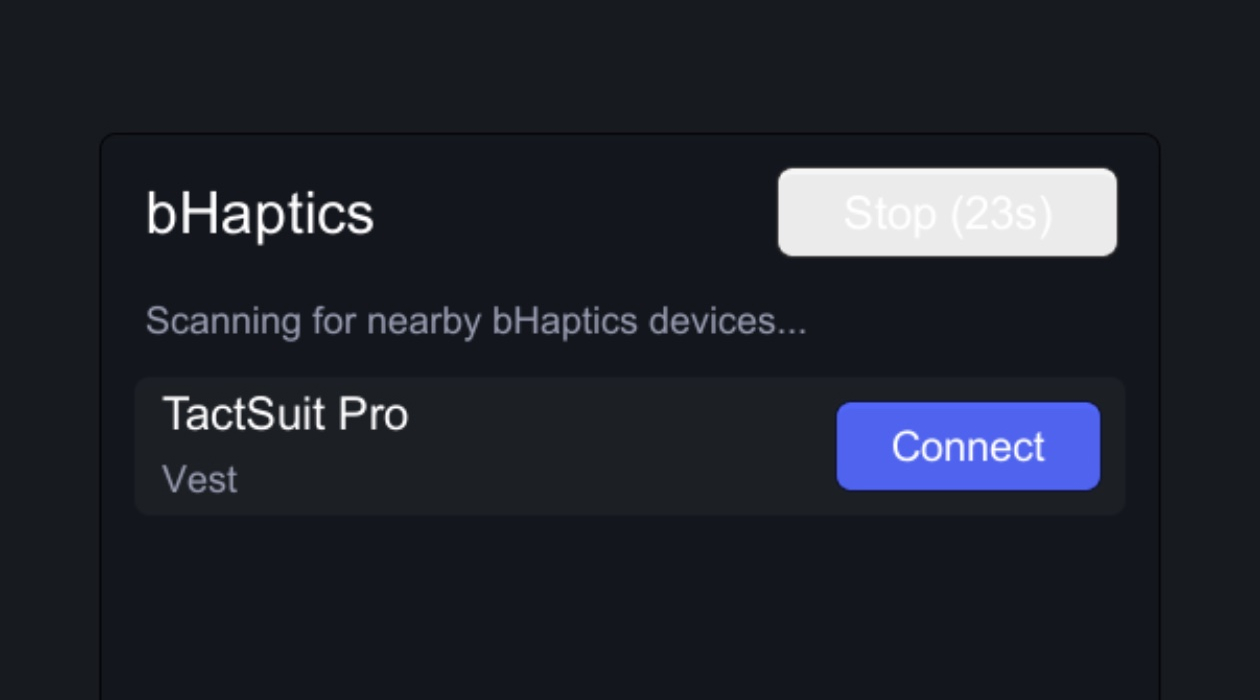
- Tapping Scan searches for nearby bHaptics devices.
- Scanning stops automatically after 30 seconds; the button shows a countdown of the remaining time. Tap it again to stop scanning immediately.
- The list shows devices found by this scan together with devices paired previously.
Connect
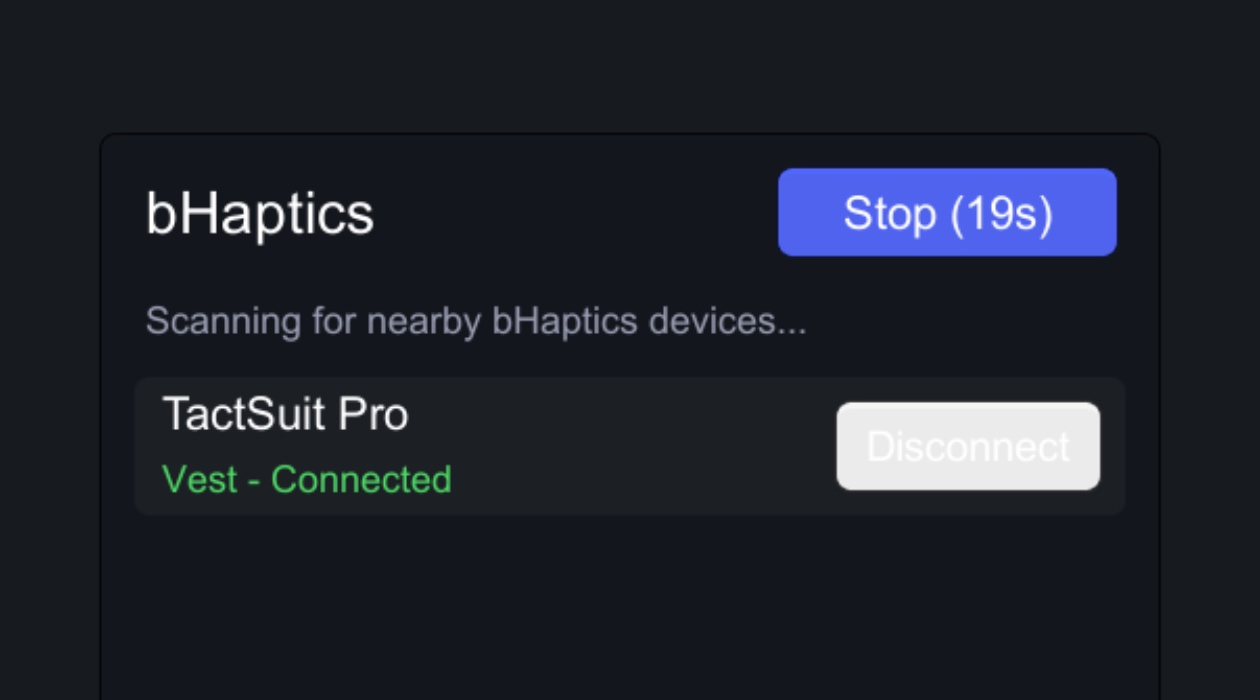
- Tapping Connect on a device pairs (remembers) it and connects in one step. The status turns green and shows
Connected. - Disconnect unpairs (forgets) the device and disconnects it.
Each device shows its connection status. There are three possible states:
| Status | Meaning |
|---|---|
[Position] - Connected (green) | Connected |
[Position] - Paired (gray) | Remembered, but not currently connected |
[Position] | Scanned, not paired |
Pairing information is stored in the app's own sandbox, not the system-level Bluetooth pairing in the iOS Settings app.
- You must pair separately in every app. To use the same device from another app, connect again from that app.
- Once paired, the device reconnects automatically the next time the SDK initializes (the
[bHaptics]prefab does this when your app starts). - A device you haven't paired never connects on its own — scanning and pairing are always explicit (useful for multi-user, on-site events).
Next Step: Playing Haptics
Scanning and connecting work on their own, but playing events requires the SDK to be initialized. Initialization is handled by the [bHaptics] prefab. Add it to your first scene (see Add Prefab for Initialization in the Unity Guide).
With the prefab in place, play events as usual:
BhapticsLibrary.Play("my_event"); // Plays on the connected device
Appendix: Controlling It Directly Without the UI
[bHapticsUIApple] is only a sample — you can build your own connection UI with the same low-level API. See Class BhapticsAppleDevices in the References.